AI Background Removal: Instant Clean Cutouts for Every Use Case
Cutting out a subject used to mean one of two things: spend twenty minutes with Photoshop's pen tool and still end up with a slightly-off edge around the hair, or pay a retouching service and wait two days. Neither option scales. AI background removal makes both irrelevant.
In under two seconds, ImgHarbor produces a transparent PNG with edge quality that matches — and regularly exceeds — what careful manual masking achieves. The time investment drops from twenty minutes to nothing. This guide explains why the technology works so well, where it still needs a human eye, and how to get professional results on products, portraits, and creative projects.
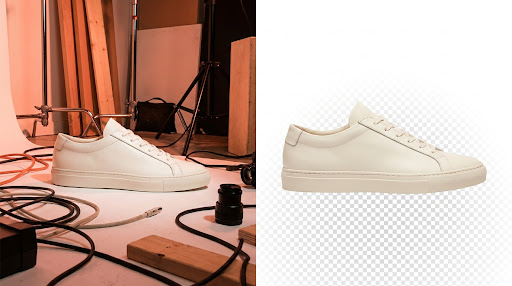
What Separates a Professional Cutout from an Amateur One
Background removal tools are common. The gap in output quality is enormous. Three specific things determine whether the result looks professional or processed:
Subpixel edge precision. Human hair is not a clean silhouette. At the boundary between a strand and the background, individual pixels belong partially to both — they need a fractional alpha value, not a binary on/off decision. An AI model that outputs genuine partial transparency produces hair that looks natural against any background color. A model that approximates with a hard clip or a blur produces hair that announces itself as processed.
Color contamination removal. When a subject is photographed against a bright background, light bounces back onto subject edges — especially visible in light hair next to a white backdrop. This leaves a fringe of background color on subject pixels that were otherwise correctly detected. Quality edge processing identifies and corrects this contamination. Most budget tools do not.
Semantic subject understanding. A segmentation model doesn't just hunt for edges — it understands what objects are. It recognizes that a person standing in front of a similarly-colored wall is still a distinct foreground subject. It understands that a product reflected in a glass tabletop is probably not part of the output you want. This contextual intelligence is what separates AI that works in real-world conditions from AI that only works in a controlled studio.
How the AI Processes Your Photo
Every pixel in your image is assigned a question: foreground or background?
The model — a transformer-based vision network trained on tens of millions of segmented images — predicts an alpha value between 0 (fully transparent) and 255 (fully opaque) for each pixel. The result is a high-resolution mask embedded as the alpha channel of a PNG file. When you open that PNG in any design application, browser, or marketplace upload portal, the transparency information is read automatically. The subject appears clean, the background is gone, and the edges carry genuine fractional transparency where the subject meets the air.
Two areas where this gets complicated:
Fine-detail edges. Hair, fur, feathers, and lace each have thousands of semi-transparent edge pixels. ImgHarbor runs a dedicated high-resolution refinement pass for these areas — a separate network specifically trained on challenging fine-detail transitions that most cutout tools skip entirely.
Translucent subjects. Eyeglasses, thin fabric, glass vessels, and liquids are partially transparent by design. They should not be fully included or fully excluded from the mask — they need the exact partial alpha values that match their natural opacity. This is the hardest problem in background removal and the one that still occasionally benefits from a manual review.
Use Cases Where AI Background Removal Changes Everything
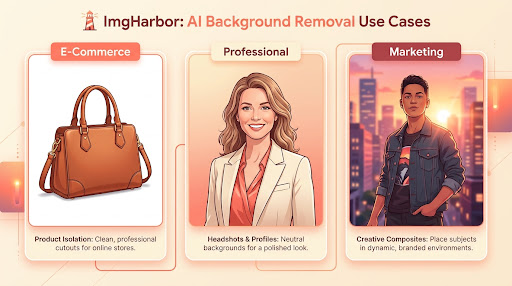
E-commerce product photography. Amazon enforces a white background with at least 85% frame coverage by the product. Shopify, Etsy, and most other platforms strongly prefer it or require it. One or two products, you manage manually. At fifty SKUs — or during a seasonal catalog refresh — manual masking becomes the bottleneck that stops everything else. AI processes an entire catalog in the time it takes to make coffee, with consistent edge treatment across every image.
Professional headshots and profile photos. A shot taken in a decent-but-imperfect location becomes a polished LinkedIn or company-directory headshot the moment the background is replaced with a clean neutral gradient. The subject is identical; the first impression is completely different. For corporate teams shooting headshots on the same day, batch processing ensures consistent backgrounds across every employee photo.
Marketing and advertising assets. Art directors need isolated subjects they can composite into brand environments. Whether it's a product dropped into a lifestyle scene, a spokesperson placed into a campaign layout, or an illustration layered into an editorial design — the cutout quality determines whether the final image looks composed or assembled. Clean edges are invisible; bad ones announce themselves immediately.
Social media and content creation. Branded story templates, event invitations, digital greeting cards, and social graphics all start with an isolated subject. The faster the cutout, the faster the content goes out — which matters when social publishing runs on a daily cadence.
Photography post-processing. Replacing a flat overcast sky in a landscape. Adding a custom backdrop to studio portraits. Creating selective depth-of-field effects in post. All of these workflows require a clean separation between what stays and what changes.
How to Get the Best Results
Upload at the highest resolution you have. ImgHarbor processes at native resolution. Higher input means more detail in edge pixels, which directly improves output quality. For print or large-format use, full-resolution input is essential.
Check the alpha preview before downloading. ImgHarbor shows your cutout against a checkerboard transparency grid before saving anything. Look at hair edges, shoulder transitions, and any semi-transparent elements. This step costs five seconds and prevents discovering a problem after the file is already in a design layout.
Enable Refine Edges for portraits and fur. The default pass handles the majority of subjects cleanly. For images with fine hair detail — curly, backlit, or flyaway strands — or fur, the Refine Edges toggle runs a second higher-precision pass that meaningfully improves strand-level output. It adds roughly one second to processing time.
Create contrast between subject and background at the shoot. The AI handles most real-world scenes correctly, but a subject whose jacket matches the wall behind them will always present more ambiguity than a subject against a contrasting backdrop. If you control the shoot, a step of physical separation between subject and background — or a different-colored backdrop — removes the most common source of segmentation difficulty.
For glass and transparent objects, examine the interior transparency. The outer boundary of a glass bottle is usually detected correctly. The challenge is how well partial transparency inside the object boundary is preserved — specifically whether the model maintains the realistic opacity of glass rather than treating it as solid. Always check the alpha preview for these subjects.
Step-by-Step Workflow
- Open ImgHarbor's tools page and select the background removal tool.
- Drop your image into the upload area. JPEG, PNG, HEIC, and WebP all work as input.
- The AI processes in under two seconds. Review the cutout in the alpha preview.
- For portraits or detailed hair, toggle Refine Edges and let the precision pass run.
- Choose your output: transparent PNG, white background, or a custom hex color.
- Toggle Keep shadow if you want the subject's natural ground shadow in the output file.
- Download. The file is ready for immediate use in any design application, marketplace listing, or presentation.
For batch work — a full product catalog or a set of headshots from a shoot — ImgHarbor AI Pro processes multiple files in sequence with consistent settings, maintaining uniform edge treatment across every image in the batch.
Frequently Asked Questions
What file formats are supported?
Input: JPEG, PNG, HEIC (iPhone native format), and WebP. Output: PNG with full alpha transparency, JPG for solid-color backgrounds, or WebP. Output resolution always matches input — no downscaling.
Does it work on complex or cluttered backgrounds?
Modern semantic segmentation handles outdoor scenes, cluttered interiors, and complex background patterns correctly in the vast majority of cases. The condition that creates genuine difficulty is when the subject and background share the same color — a white shirt against a white wall, for example. Physical separation at the shoot, or a contrasting backdrop, solves this before the photo is taken.
Can I keep the subject's natural shadow?
Yes. Before downloading, enable Keep shadow. The shadow is included in the alpha channel at reduced opacity, so it looks natural — slightly transparent rather than fully opaque — when the cutout is placed over a new background.
Is there a file size or resolution limit?
ImgHarbor supports high-resolution files suitable for print, large-format advertising, and hi-res marketplace requirements. Processing time increases slightly with larger files, but there is no hard resolution cap.
Does it work on non-photographic images — CGI renders, illustrations, product visualizations?
Yes, and often very cleanly. CGI renders and flat illustrations typically have sharper, more predictable edges than photographs, which makes the segmentation task straightforward. The same four-step workflow applies with consistently high results.
Can I process batches of images?
Batch processing is available with ImgHarbor AI Pro. Upload multiple images at once and process them all with the same settings — particularly useful for product catalogs where consistent backgrounds across every SKU are required.
Is my uploaded photo private?
Images are transmitted over HTTPS and processed in an isolated session environment. Files are deleted automatically when your session ends. ImgHarbor does not use uploaded images for model training.
Is there a free trial?
Yes. New ImgHarbor accounts include a set of complimentary background removals. For unlimited processing and batch handling, ImgHarbor AI Pro is available with monthly, annual, and lifetime plan options.